Showing posts with label Microsoft PowerPoint. Show all posts

Friday, January 29, 2016

Top 9 features of PowerPoint 2016 you should give a try

Microsoft PowerPoint 2016 is rich in features and will make presentation creation a fun. It requires at least 1 GB RAM (32 bit) or 2 GB RAM for 64 bit machine. PowerPoint 2016 works only on Windows7 and above and requires at least 1280 x 800 resolution.

Here are few features worth mentioning.

1. Better video output
Now you can create presentation videos (MP4) having resolution as high as 1920 x 1080, which plays great on larger screens.

2. Share presentations
In PowerPoint 2016 you can share your presentation with others using OneDrive or Office 365 SharePoint. You would see share option on ribbon but before you share, presentation has to be shared on OneDrive or Office365.

Shows the Share button on the ribbon in PowerPoint 2016

3. Screen capture
The much awaited feature now lets you capture specific area of the screen and insert it directly into your presentation.
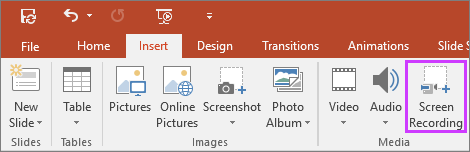
Shows insert screen recording button in PowerPoint2016

4. Advance equation editor
Now in addition to inserting pre-formatted equations, you can also write equations and PowerPoint will convert them into text. On a mobile or tablet device, you can use your finger or a touch stylus to write math equations by hand, and PowerPoint will convert that into text.
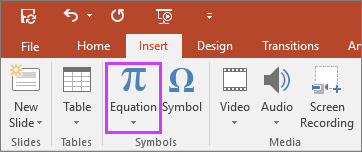
Shows insert equations button on the ribbon in PowerPoint

5. Smart lookup
While creating presentations you can look for more details on word or phrase. You can select a word or phrase, right-click it, and choose Smart Lookup, which will return definitions, Wiki articles, and top related searches from the web.


6. Charts

PowerPoint 2016 has six new charts—Box and Whisker, Treemap, Sunburst, Histogram, and Waterfall.


7. Quick access with tell me
Tell ME helps get quick access to different tools and features of PowerPoint. It is a text field where you'll enter words and phrases associated with what you want to achieve and you’ll quickly get to options you want to use or actions you wish to perform. For example if you type remove it will prompt you action like “Delete Slide”.
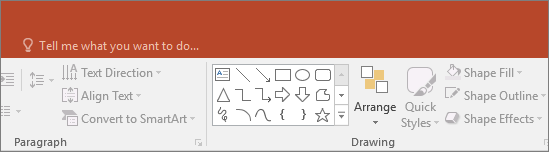
shows the "tell me" search box on the ribbon in PowerPoint

It might come handy when you are not able to locate a command on ribbon.

Features that come with 365 subs
There are certain features like Designer, Morph in PowerPoint 2016 which are only available if you have an Office 365 subscription.

8. Morph Transition
Microsoft has introduced a new transition type, Morph in PowerPoint 2016, which might assist you build smooth animations, transitions, and object movements across the slides in your presentation. You will need to create at least 2 slides with a minimum of one object in common—the easiest method to do so is to duplicate the slide and move the object on the second slide, or you can also copy the object from one slide and paste it on other.
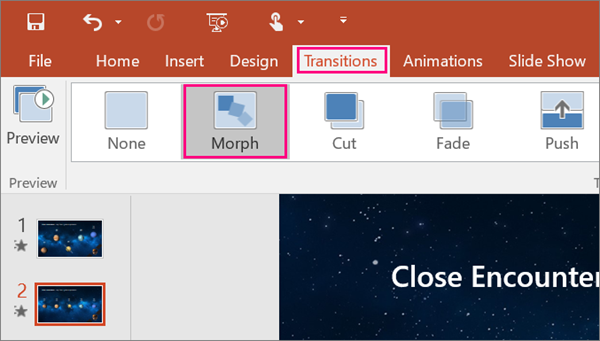


9. PowerPoint Designer
If you are familiar with Visual Bee add-in, you would certainly know what designer do.
PowerPoint Designer is a new service that analyzes your content and automatically generate a different ideas that you can select from to make your slides look awesome.

Here is a video that talks more about Morph and Designer


You can head here for free training on PowerPoint 2016.

Wednesday, January 14, 2015

Create rich interactive lessons with Microsoft Office-MIX

Microsoft is quickly changing and adapting to rapidly changing user behavior and requirements. Last year saw two products from Mircosoft, Sway (competes with Prezi) and Office-Mix (competes with Adobe Presenter, Articulate) launched possibly to save people from death by PowerPoint.

Microsoft Office-Mix is a free PowerPoint Add-in that lets you tell your story with audio, video, annotations, screen recording and interactive element. It helps educators create interactive lessons with slides, media, quizzes and polls. In addition to all these cool features which are otherwise paid in other such Add-ins, Office-Mix provides rich analytics and online sharing.


Though Sway and Office-Mix both are not a new idea, yet it is surely going to be a bliss for educators who will not have to rely on paid software for creation of interactive synchronized lessons. Here is a Mix explaining open number lines-

Wednesday, April 2, 2014

View PowerPoint presentations on iPad with free Microsoft app

After a long wait Microsoft office apps are now on iPad. Now you can view PowerPoint presentations with full fidelity along with all animations and transition effects on your iPad. Microsoft recently released different office apps for iPad which includes an app for PowerPoint as well. Microsoft's PowerPoint app lets users view presentations in slideshow mode and supports animations and transition effects.


Prior to this PowerPoint users were either using BrainShark or authorSTREAM's iPad app to view PowerPoint presentations since these were the only apps supporting animation and transition effects. Biggest disadvantage with Brainshark was the wait time required for server side conversion in the format
supported by app. User had to wait for upload, conversion and then download of converted output on iPad.

With MS iPad app slideshow begins as soon as you select MS app to open the presentation. Not only you can view and share presentations that are on your iPad or email but you can also create and edit presentations on your iPad. Creations and editing features are paid and require office 365 subscription.
So if you are addicted to iPad and MS PowerPoint for creating presentations, now you don't have to switch on your laptop for PowerPoint presentations.


Tuesday, July 2, 2013

PowerPoint 2010 and 2013: What's added and what got removed?

Microsoft has added some new features to PowerPoint 2013 and has discontinued some of the existing features or functionality.

What new features, functionality has been added in PowerPoint 2013?

Eye dropper: Eyedropper the color picker tool helps you copy the shape color and apply to any other shape.


PowerPoint to MP4: PowerPoint 2013 allows you to convert PowerPoint presentations in MP4 video format.

Search and insert images and videos from within PowerPoint: PowerPoint 2013 has inbuilt image and video search engine which lets you search images from Bing, Flickr and videos from Bing and YouTube.

Theme family and variants: PowerPoint 2013 has more themes and flexibility to choose and edit variants.

Presenter View: Changes to presenter view like automatic selection of monitor, jump to slides and zoom in.

Share and publish online

Head here for more details on these and other features added to PowerPoint 2013.

What has been removed or changed in PowerPoint 2013 from earlier versions?

PowerPoint viewer: PowerPoint viewer is a small free exe that lets you view presentations created in PowerPoint 97 and later versions without the need of licensed version of PowerPoint. This has been in use to view PowerPoint presentations on machines that doesn't have purchased versions of MS PowerPoint software.

Now question arises how to view PowerPoint presentations created in 2013 without PowerPoint viewer if you don't have licensed copy of PowerPoint 2013? If you are not worried about animations and media, use Google docs or Slideshare, Scribd. If you are worried about animations and media too, try authorSTREAM or Microsoft web apps.

Save PPT as HTML:  This feature existed so that people can save a PPT as HTML and use that HTML on web to show case the presentation. This feature became obsolete with online presentation sharing websites like Slideshare and authorSTREAM providing embeds that could play your presentations on blogs, website and even on Social media platforms like Facebook, Twitter, LinkedIn.

Media formats: Video (WMV) and Audio (WMA) formats have been default video and audio formats for PowerPoint till 2010. Now default media formats are H.264 for video and AAC for audio.

Equation Editor: Equation Editor the formula editor that that allows you to insert math and science equations in a slide is no longer available in 2013.

Microsoft Clip Organizer:  The Clip Organizer feature has been replaced by the Insert Media dialog box.  Insert Media feature lets you search and insert content from the Office.com Clip Art collection and other online sources, such as Bing Image/Video search, Flickr, and your SkyDrive or Facebook page.


Wednesday, February 15, 2012

PowerPoint usage statistics and market share

Microsoft PowerPoint Icon      Image via Wikipedia
PowerPoint industry has flourished like anything in last few years. More and more people have started using PowerPoint presentations for business, education and marketing activities. The success of  new product ideas and use cases like online PowerPoint sharing, converting PowerPoint presentations to videos, creating synchronized PowerPoint presentations validates the rapid growth of PowerPoint industry.

This growth is the reason that lot many people [Entrepreneurs, Product Managers, Analysts]  look for stats related to usage of PowerPoint presentations and try to estimate the size of PowerPoint market. No doubt that such stats [even estimates] are of much  importance to any business or product idea related to PowerPoint and PowerPoint users.


Here are few important estimated stats about PowerPoint that might help those looking for such stats. We would keep on updating these stats with links to resources from where they come from:


  • How many PowerPoint users are there?: There are more than 500 million users of  PowerPoint   worldwide. [Source of information]
  • How many presentations are created daily?: More than 30 million presentations  are created everyday  [Source of information]    
  • Use of PowerPoint in teaching: Over 6 Million Teachers around the world use PowerPoint for classroom lectures [Source of information]
  • Use of PowerPoint in Business and Education: More than 120 million people are using PowerPoint to create business and educational presentations worldwide.  [Source of information
  • Estimated sale of PowerPoint software $100m     [Source of information]
  • Average PowerPoint runs for 250 minutes start up to shutdown   [Source of information]
  • The average PowerPoint slide shows has 40 words   [Source of information]
  • Microsoft PowerPoint has estimated 95% share of presentation software market  [Source of information]


Monday, August 8, 2011

PowerPoint quiz: Add audio in PowerPoint slides

Test your PowerPoint knowledge by taking this test on audio in PowerPoint slides. Quiz is based on PowerPoint 2007 and few things might not be applicable to PowerPoint 2010.

Tuesday, February 9, 2010

Triggers in PowerPoint

PowerPoint triggersPowerPoint offers wide range of features like motion path animations, action buttons, inter slide hyperlinks to create interactive and engaging presentations.

PowerPoint executes all the animations as sequence of events. Any object (text/image/shape) can be made appear, fly in as a result of click or after effect of some action. Any action for example a click results in next animation or slide.

You can't just jump on to a particular event of your choice or repeat an action again and again. For example what if you want to stay on same slide and display an image again and again on click on a text say "Who is founder of Microsoft". In such scenarios where you have to bypass sequencing or repeat actions while staying on the same slide, PowerPoint triggers is the best option available. Triggers can only be set on some animation effect.

  • Select any text/object, apply some custom animation effect.
  • Either double click or right click the animation effect applied(on custom animation sidebar).
  • Click on 'timings' tab, click Triggers button and select the radio button "Start effect on click of".
  • Select the event on whose click you want selected animation to execute.
Either visit Microsoft 's website or watch video below to understand use of triggers in PowerPoint.


Video triggers in PowerPoint 2010

PowerPoint 2010 offers Video Triggers; a feature with which one can mark locations in a video (i.e. set bookmarks), and then trigger animation sequences upon reaching those bookmarks on playback of the video. In simple terms you can set some specific animation to run when a particular scene appears in video inserted in PowerPoint.

Image via Microsoft PowerPoint Blog

Tuesday, January 5, 2010

Create PowerPoint presentations which keep audience attentive and awake

An effective PowerPoint presentation can leave long lasting impact on audience. A PowerPoint can do more than what a blog post or document can.

Don't just fill your presentation with tons of text, bullets, images and annoying animations. Your PowerPoint should be a balanced combination of text, images and animation effects. PowerPoint presentation can also have narrations or background music if you intend to put it on some online presentation sharing website. A little planning, great script, cool design and sincere hard work will certainly pay you. There is such a abundance of bad presentation that PowerPoint expert and author Ellen Finkelstein has to start a campaign named " death by PowerPoint".

AudienceImage by kurafire via Flickr


Here are few resources which you should refer to if you really want your audience to pay attention to what you want to convey:

Microsoft

Guy Kawasaki's 10-20-30 rule

wikiHow

Concordia University

Friday, December 18, 2009

Slide Rocket launches record audio feature

Image representing SlideRocket as depicted in ...Image via CrunchBase

Online presentation creation tool, Slide Rocket now allows you to record audio in your presentations online. 'Record audio feature' is somewhat similar to record narration feature of PowerPoint. You just need to create the slide, click on record your audio narration on the slide and record the voice over.

The feature was certainly a most sought after feature for any online presentation tool. More and more such features which are otherwise available only in PowerPoint will boost the usage of online presentation tools.


Reblog this post [with Zemanta]

Monday, December 14, 2009

Free PowerPoint templates for Holidays

Christmas and new year are around the corner. This is the time when we share our love, emotions and warm greetings with our near and dears. For PowerPoint users this is the time to carve their deep emotions and feeling on a PowerPoint and share it with their loved ones.
Free PowerPOint Tempaltes


To create a stunning PowerPoint presentation, an appealing template is a prerequisite. Those who are well versed with PowerPoint software, create these templates themselves. Those who are not that skilled to create a terrific PowerPoint template or background themselves need not to despair. There are numerous websites and blogs who offer free PowerPoint templates for Christmas and New year.

You can download these free templates; add music, animations and your very own PowerPoint greeting will be ready in no time. Here are few good websites from where you can download free PowerPoint templates for Christmas, New Year and Holidays:

Microsoft Website
Indezine
Brainy Betty
Presentation Magazine: Presentation magazine also let you create custom image backgrounds using card maker which you can use as a template in PowerPoint:
Christianppt

Thursday, December 3, 2009

PowerPoint as a marketing tool

Wordle Cloud of the Internet Marketing Blog - ...Image by DavidErickson via Flickr

In last five years PowerPoint has gone a long way and so the PowerPoint software and websites. PowerPoint which was a traditional desktop thing is now more like a web product. More and more online products are being added to the ever growing list of PowerPoint resources and tools everyday. From PowerPoint creation to PowerPoint sharing, all has gone a complete makeover. Now only handful of people use email attachments as a way to share PowerPoint presentations. Most of the PowerPoint geeks are hooked to online PowerPoint sharing websites like SlideShare, authorSTREAM or are using online presentation creation tools like Google Presentations, Slide Rocket, slide 280 etc. Microsoft too will join the league of online PowerPoint sharing and collaboration websites with the launch of PowerPoint 2010 early next year.

Like video embeds, presentation embeds have become inevitable for bloggers. All such online and offline PowerPoint products have made PowerPoint presentations a great marketing tool.

You can upload your PowerPoint presentations either on SlideShare, Scribd or authorSTREAM and share it with your friends, family or clients in more easy and convenient way. Advantage of using Scribd or Slideshare is that your content gets more viewers while authorSTREAM is excellent in retaining animations, sound and video. In a nutshell, all will help you spread the word using a PowerPoint presentation. Get the flash embed and post it on your blog/website and anywhere where flash embeds are allowed.

PowerPoint to video

We all know that if a picture is worth than thousand words, a video is worth thousand picture. Creating a great video is not everyone's cup of tea. A great video requires excellent video shooting skills besides an awesome storyboard whereas PowerPoint is so flexible and easy to use
that even a grade III student can use it without much hassle.

With so many offline and online tools for PowerPoint to video conversion, it's just a matter of will that you convert your PowerPoint in video and share it on popular video sharing websites.

Online Free PowerPoint to video tools

authorSTREAM: Converts PowerPoint presentations to FLV, AVI, WMV or MP4. Maximum file size allowed is 1 GB and presentations below 5 mins are converted for free. authorSTREAM also lets you send converted videos to YouTube directly.

WonderSlide: Converts PowerPoint presentations to FLV, AVI, WMV or MP4. Maximum file size allowed is 50 MB.

Desktop PowerPoint to video tools

PowerPoint 2010
E.M. PowerPoint Video Converter
Wondershare PPT to video
http://www.acoolsoft.com/
http://bytescout.com/ppttovideoscout.html
http://www.ppt2video.com/

Create an appealing marketing PowerPoint presentation. Jazz it up with videos- Youtube embeds or videos from file, animations and sound. Upload it on authorSTREAM, Slideshare or any other PowerPoint sharing website, convert it to video using offline or online PowerPoint to video converters and let your marketing stuff go viral. All these presentation sharing websites have social bookmarking and post to network buttons which will help you share your stuff more easily.
Reblog this post [with Zemanta]

Monday, November 23, 2009

Motion Path Animations

Motion paths offer such a wonderful PowerPoint animation effect that in slide show mode, for a moment you might mistake the presentation to be a video. Don't believe it? See it for yourself:


A motion path is a custom path that an object(text/image) follows. Either you can pick from preset paths like line, up, down or may create your own custom paths. Motion Paths let you create your own animation effects which are otherwise not available in PowerPoint.

Just follow steps below to add awesome Motion Path animations to your PowerPoint presentation:


  1. Select the object(text or image).
  2. Click on the animation tab.
  3. Click on Add Effect>Motion Paths.
  4. Select motion path you want to use and click OK.
  5. Run slide show to verify and save.


Microsoft has good training material with voice over for Motion paths. You can have this free training here.

Reblog this post [with Zemanta]

Wednesday, November 18, 2009

Online PowerPoint meeting tools

PowerPoint cloud meeting or presentation meeting is not a new concept; SlideLive, authorSTREAM and Google presentations have been doing this since long.

These PowerPoint meeting web applications allow presenters to deliver presentations, live over the Internet where slide navigation is being controlled by presenter. In today’s world, many a times we need to communicate with people at different Geo locations who can’t get together at same place. That is where these presentation meeting applications come in handy.

Microsoft Office PowerPoint 2010Image via Wikipedia

Microsoft PowerPoint 2010 has also come up with a similar feature called broadcasting where presenter can click through the slides and everyone attending will be on the same slide. Animations also work the same way as in PowerPoint file. Only thing seems missing is chat which Microsoft must have planned with Microsoft communication server.

Here is a video demo of broadcast feature from Microsoft.

Monday, November 16, 2009

Insert videos in PowerPoint using authorSTREAM desktop

Sharing PowerPoint presentations having videos has always been a big issue with normal PowerPoint users. People always wonder why and how video or movie file inserted in PowerPoint which plays well on their computer disappears when they run slide show on their office system or any other computer.

Most of the PowerPoint users are unaware of the fact that videos are always linked in PowerPoint slides and will not play on the system other than where the linked file resides. Few technical users keep PowerPoint file and video in same folder and share the zip file so that video plays irrespective of where you run Slide show.

For those who don't want to share bulky zip files or who don't know technical details related to video insertion in PowerPoint, authorSTREAM has come up with a promising solution. authorSTREAM desktop (a free PowerPoint plug-in from authorSTREAM) which lets you insert YouTube videos, can now take care of videos inserted in PowerPoint slides. You just need to upload PowerPoint presentation having linked audio or video using authorSTREAM Desktop and its inbuilt mechanism will take care of rest.

authorstream logo


Presentation output on authorSTREAM will play inserted videos as they play in PowerPoint slide show on your machine and you only need to share authorSTREAM presentation link with your friends and family. So now besides inserting YouTube videos, you can insert videos from your desktop in your PowerPoint slides.


More details at authorSTREAM blog.


Reblog this post [with Zemanta]

Friday, November 6, 2009

PowerPoint to Silverlight

Microsoft SilverlightImage via Wikipedia

Do you know that more than 250 million people around the world use PowerPoint and not less than 30 million presentations are created daily? There is huge list of resources and tools related to PowerPoint. Lately more and more companies have come up with software's like PowerPoint to Flash SDK, PowerPoint Add-ins/ Plug-ins, PowerPoint to video conversion tools and websites for online sharing of PowerPoint presentations. Most of the products out of these deal with PowerPoint to flash conversion.

Today, PowerPoint to flash conversion is the most popular way of sharing PowerPoint presentations on the web. But, now trend seems to be changing with more products coming in for PowerPoint to Silverlight, a web application framework from Microsoft that provides functionalists similar to those in Adobe Flash. Initially released as a video streaming plugin, later versions brought additional interactivity features and support for .NET languages and development tools. The current version, 3.0, was released on July 9, 2009. It is compatible with multiple web browser products used on Microsoft Windows and Mac OS X operating systems

There has been buzz around Microsoft Silverlight since Microsoft came up with the technology. Silverlight's awesome web capabilities and brand association of Microsoft has encouraged more and more people to use Silverlight as a designing tool for creating rich media content.


Electric Rain, 3D and multimedia solutions company has announced a new product called Convexion, a PowerPoint to Silverlight converter. Convexion converts PowerPoint 2007 slideshows to Microsoft Silverlight based presentations while retaining the animation scheme and accurate slide layout. The Add-in enables users to publish their PowerPoint slideshows to the Microsoft Silverlight and WPF (Windows Presentation Foundation) formats for sharing and viewing on the web, in blogs, and as a live desktop presentation player.

Will PowerPoint to Silverlight conversion be a popular technology for sharing presentations on the web in near future?
Reblog this post [with Zemanta]

Wednesday, October 28, 2009

Insert royalty free images in PowerPoint using new PowerPoint add-in from fotolia

Images and video marketplace, Fotolia has released FREE Add-in for PowerPoint 2007 & Word 2007. With Fotolia PowerPoint add-in you can instantly add high-resolution photos, vectors, and illustrations using your free Fotolia account without leaving PowerPoint. See video below on how to use Fotolia Add-in.


You can download Fotolia Add-in for PowerPoint 2007 here.

Add-ins like authorSTREAM desktop which lets you insert YouTube videos and images from Bing, SlideFinder which lets you search the web for presentations and slides and Fotolia ribbon are going to give a new direction to creation of content and media rich presentations.
Reblog this post [with Zemanta]

Thursday, October 22, 2009

Using PowerPoint presentations as Greeting card

This post on feisublog which showcase a Diwali greeting from authorSTREAM, shows a perfect and innovative way of sending personalized greeting card digitally crafted with your own hands to your loved ones.

PowerPoint gives you immense power and freedom to use your imagination, creativity to create a great greeting card for any occasion. With typical greeting card websites it's way difficult to pick the correct card which can express your deep emotions. Animations, sound, your own narration in PowerPoint will help you ponder your inner emotions in a PowerPoint slide show in a much better way.


So just build up a theme or story and start creating your own very special card. Get some cool pictures, templates, music or record narration if you want to send more personalized card. Make sure to time it with cool animations and transitions.

Halloween iconImage via Wikipedia


Why not create your own Halloween greeting card, full of bats, jack-o'-lantern, ghosts, skeletons, witches, devils and some scary music. Have a look on Halloween cards on Slideshare and authorSTREAM, read Microsoft's step by step guide on How to Create a multimedia greeting card in PowerPoint and get started.

Update: authorSTREAM already has a greeting card section which has user submitted presentation cards for different events and festivals. Either you can use greeting cards available on authorSTREAM or upload your own PowerPoint presentation, add some background theme, message and share it with your loved ones.

Tuesday, July 21, 2009

Funding time for online presentation websites

We all have seen success of video sharing websites and now it seems to be turn of presentation websites. There are so many online presentation creation and sharing websites. Most of them have pretty good content as well as user base. SlideRocket and Prezi are two such presentation players who have raised quite good funding over the period.

Prezi lets you break away from the slide-by-slide approach of most presentations. Instead, it allows you to create non-linear presentations where you can zoom in and out of a visual map containing words, links, images, videos, etc. Prezi is quite similar to pptPlex, a Microsoft Office Labs project . Prezi has raised an undisclosed amount in Series A financing from Scandinavian VC firm Sunstone Capital and is adding Twitter co-founder Jack Dorsey to its roster of company advisors.

SlideRocket, the online presentation creation solution, announced it received $5 million in Series B funding and that Chuck Dietrich, a former General Manager & Vice President at salesforce.com, has joined the company as CEO.

SlideRocket, similar to 280Slides and Google presentations is a cloud based service which lets you create slideshows online without the need of PowerPoint software. It also lets you collaborate and work in sync with your colleagues. Easy collaboration is also a main highlight of Microsoft PowerPoint 2010.

It will be interesting to see how much market share Microsoft will be able to grab with so many presentation players already in market with ample user base.

Wednesday, July 15, 2009

Can PowerPoint 2010 jeopardize online presentation creation business model?

With three main objectives of 'Work anywhere with Office Web applications', 'Collaborate better with co-authoring' and 'Bring ideas to life with video and picture editing', Microsoft is all set to launch office 2010 next year.

Microsoft office along with Microsoft SharePoint 2010/ Windows Live account and Office Communicator 2007 R2 and Office Communications Server 2007 R2 will be a great tool offering almost all features being offered by online presentation creation websites. Google presentations seems to stand nowhere against PowerPoint 2010. Can PowerPoint 2010 be a threat to online presentation creation websites? Though the question makes some sense yet it will be too early to look for an answer.

As per Microsoft

Microsoft PowerPoint 2010 delivers more new and exciting ways to create and share dynamic presentations with any audience. Improved audio and visual capabilities help you tell a crisp, cinematic story that’s as easy to create as it is powerful to watch. New, easy-to-use tools help you polish your presentations to help you keep your audience’s attention even longer. Almost-anywhere access to PowerPoint 2010 from your Smartphone or the Web allows you to simultaneously work on presentations with other people. Simply put, it’s never been easier to express your ideas with PowerPoint 2010. Its Backstage view replaces the file menu, a co-authoring capability streamlines collaboration, and the ability to broadcast slideshows doesn't require viewers to have PowerPoint installed.


Embedding video in PowerPoint

With PowerPoint 2010, you can effectively engage your audience by embedding and personalizing videos within your presentation. The embedded video file can be customized by adding video triggers and styles directly within PowerPoint 2010 using inbuilt basic video edit tool, saving your time and money. You can also save your PowerPoint files in wmv, compress them and share.

Awesome visual effects

PowerPoint 2010 has new Smart art graphics, more animation effects, and advance transition effects. With PowerPoint 2010, you can easily create powerful visuals and apply professional-looking designs to photos and text, and to videos in PowerPoint. From new and improved picture-editing effects such as saturation and watercolor to video editing and formatting capabilities such as trimming, fades and reflections, Office 2010 opens up a world of design options to give life to your ideas.

Here are few videos demonstrating features and capabilities of PowerPoint 2010:

Tuesday, July 14, 2009

Insert YouTube videos in PowerPoint with authorSTREAM Desktop

Online PowerPoint sharing website authorSTREAM, today released authorSTREAM desktop, a plugin for PowerPoint 2007 (ribbon). Similar to SlideFinder which lets you search and insert PowerPoint slides, authorSTREAM desktop lets you search and insert YouTube videos and images in your PowerPoint file from within PowerPoint. So now with authorSTREAM desktop you don't have to remember and follow complex steps to Embed videos in PowerPoint files.

authorSTREAM desktop is pretty simple to use and contrary to SlideFinder their image and video search interface seems to be a part of PowerPoint software itself. Here's a video, in which Harman Singh the CEO of authorGEN(Company behind authorSTREAM) demonstrates authorSTREAM desktop:

Using authorSTREAM Desktop


authorSTREAM's closest competitor SlideShare too allows you to embed YouTube videos in presentations uploaded on their website. You have to edit your presentation after your presentation gets converted on SlideShare. This video is inserted as a separate flash file after slide number selected by you. So if you download the PowerPoint file from SlideShare, there will be no slide having YouTube video.

YouTube videos embedded using authorSTREAM desktop not only play fine on authorSTREAM but they even work fine in PowerPoint slide show. This means you can share PowerPoint presentations having YouTube embed inserted using authorSTREAM desktop, through emails too. You can have text as well as YouTube video on same slide and next/ back arrows on player also work fine. See it yourself below:


Justin Ezarik


Uploaded on authorSTREAM by caliber | Upload your own presentation


You can insert YouTube videos in PowerPoint files manually too as explained here and authorSTREAM handles that too.


authorSTREAM recently changed their tagline to "Do More with PowerPoint" and their recent updates for PowerPoint to video, Channels, and authorSTREAM desktop validates that.


Reblog this post [with Zemanta]

You might also like to read about

Blog Widget by LinkWithin