Microsoft has added some new features to PowerPoint 2013 and has discontinued some of the existing features or functionality.
What new features, functionality has been added in PowerPoint 2013?
Eye dropper: Eyedropper the color picker tool helps you copy the shape color and apply to any other shape.
PowerPoint to MP4: PowerPoint 2013 allows you to convert PowerPoint presentations in MP4 video format.
Search and insert images and videos from within PowerPoint: PowerPoint 2013 has inbuilt image and video search engine which lets you search images from Bing, Flickr and videos from Bing and YouTube.
Theme family and variants: PowerPoint 2013 has more themes and flexibility to choose and edit variants.
Presenter View: Changes to presenter view like automatic selection of monitor, jump to slides and zoom in.
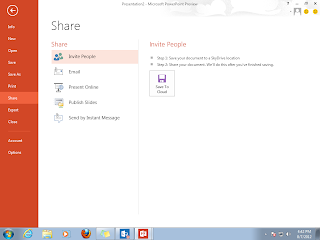
Share and publish online
Head here for more details on these and other features added to PowerPoint 2013.
What has been removed or changed in PowerPoint 2013 from earlier versions?
PowerPoint viewer: PowerPoint viewer is a small free exe that lets you view presentations created in PowerPoint 97 and later versions without the need of licensed version of PowerPoint. This has been in use to view PowerPoint presentations on machines that doesn't have purchased versions of MS PowerPoint software.
Now question arises how to view PowerPoint presentations created in 2013 without PowerPoint viewer if you don't have licensed copy of PowerPoint 2013? If you are not worried about animations and media, use Google docs or Slideshare, Scribd. If you are worried about animations and media too, try authorSTREAM or Microsoft web apps.
Save PPT as HTML: This feature existed so that people can save a PPT as HTML and use that HTML on web to show case the presentation. This feature became obsolete with online presentation sharing websites like Slideshare and authorSTREAM providing embeds that could play your presentations on blogs, website and even on Social media platforms like Facebook, Twitter, LinkedIn.
Media formats: Video (WMV) and Audio (WMA) formats have been default video and audio formats for PowerPoint till 2010. Now default media formats are H.264 for video and AAC for audio.
Equation Editor: Equation Editor the formula editor that that allows you to insert math and science equations in a slide is no longer available in 2013.
Microsoft Clip Organizer: The Clip Organizer feature has been replaced by the Insert Media dialog box. Insert Media feature lets you search and insert content from the Office.com Clip Art collection and other online sources, such as Bing Image/Video search, Flickr, and your SkyDrive or Facebook page.
What new features, functionality has been added in PowerPoint 2013?
Eye dropper: Eyedropper the color picker tool helps you copy the shape color and apply to any other shape.

PowerPoint to MP4: PowerPoint 2013 allows you to convert PowerPoint presentations in MP4 video format.
Search and insert images and videos from within PowerPoint: PowerPoint 2013 has inbuilt image and video search engine which lets you search images from Bing, Flickr and videos from Bing and YouTube.
Theme family and variants: PowerPoint 2013 has more themes and flexibility to choose and edit variants.
Presenter View: Changes to presenter view like automatic selection of monitor, jump to slides and zoom in.
Share and publish online
Head here for more details on these and other features added to PowerPoint 2013.
What has been removed or changed in PowerPoint 2013 from earlier versions?
PowerPoint viewer: PowerPoint viewer is a small free exe that lets you view presentations created in PowerPoint 97 and later versions without the need of licensed version of PowerPoint. This has been in use to view PowerPoint presentations on machines that doesn't have purchased versions of MS PowerPoint software.
Now question arises how to view PowerPoint presentations created in 2013 without PowerPoint viewer if you don't have licensed copy of PowerPoint 2013? If you are not worried about animations and media, use Google docs or Slideshare, Scribd. If you are worried about animations and media too, try authorSTREAM or Microsoft web apps.
Save PPT as HTML: This feature existed so that people can save a PPT as HTML and use that HTML on web to show case the presentation. This feature became obsolete with online presentation sharing websites like Slideshare and authorSTREAM providing embeds that could play your presentations on blogs, website and even on Social media platforms like Facebook, Twitter, LinkedIn.
Media formats: Video (WMV) and Audio (WMA) formats have been default video and audio formats for PowerPoint till 2010. Now default media formats are H.264 for video and AAC for audio.
Equation Editor: Equation Editor the formula editor that that allows you to insert math and science equations in a slide is no longer available in 2013.
Microsoft Clip Organizer: The Clip Organizer feature has been replaced by the Insert Media dialog box. Insert Media feature lets you search and insert content from the Office.com Clip Art collection and other online sources, such as Bing Image/Video search, Flickr, and your SkyDrive or Facebook page.


