PowerPoint search engine SlideFinder has released Add-in for PowerPoint 2007 which lets you search the web for presentations and slides from within PowerPoint. The SlideFinder Add-in also enables you to add the slides you find to your current presentation.
Download Add-in from http://tools.slidefinder.net/addin-en.aspx and follow steps below to search PowerPoint presentations and insert slides from search results to your presentation.
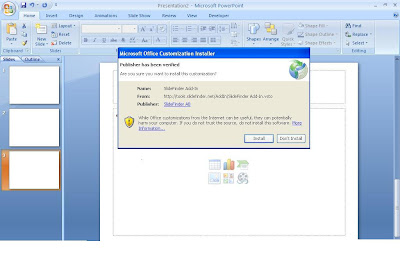
Install SlideFinder Addin on your machine
 Click on search for Slides. A warning message about copyright will appear. Presentations are searched from web so they may be copyrighted. Make sure that slides which you download and insert are not copyright protected.
 Clicking ok will open a new window to search PowerPoint files which doesn't seem to be a good idea. SlideFinder should have kept search box somewhere within PowerPoint window. Opening a new window is as good as searching in a browser. On the top of that Google ads make the search experience more unpleasant.
 Search for any keyword and SlideFinder will display PowerPoint presentations available on the web for download. Select the slide(Tic the check box) which may fit in your presentation and click "Add Slide to presentation" button.
 SlideFinder will download and insert slide in current presentation. Certainly SlideFinder has brought web within PowerPoint. There is still room for improvement in Add-in but the idea of PowerPoint search within PowerPoint is brilliant and will help PowerPoint users a lot.
Download Add-in from http://tools.slidefinder.net/addin-en.aspx and follow steps below to search PowerPoint presentations and insert slides from search results to your presentation.

Install SlideFinder Addin on your machine
 Click on search for Slides. A warning message about copyright will appear. Presentations are searched from web so they may be copyrighted. Make sure that slides which you download and insert are not copyright protected.
 Clicking ok will open a new window to search PowerPoint files which doesn't seem to be a good idea. SlideFinder should have kept search box somewhere within PowerPoint window. Opening a new window is as good as searching in a browser. On the top of that Google ads make the search experience more unpleasant.
 Search for any keyword and SlideFinder will display PowerPoint presentations available on the web for download. Select the slide(Tic the check box) which may fit in your presentation and click "Add Slide to presentation" button.
 SlideFinder will download and insert slide in current presentation. Certainly SlideFinder has brought web within PowerPoint. There is still room for improvement in Add-in but the idea of PowerPoint search within PowerPoint is brilliant and will help PowerPoint users a lot.

![Reblog this post [with Zemanta]](https://lh3.googleusercontent.com/blogger_img_proxy/AEn0k_u1C6QYSK7O34VoBBjDNYLglgqBtOONbNajBc8BnmnY29L1kUw4iQFwpWrMYtmb808B4gKOLoNtXwA9yac8GFPq8qzbj5kwYOy0M4uZIeYjkAc6jqMWK_VdhCJ0Q2gMhjnpofBO4TO8fU6ad1CK6d8=s0-d)

![Reblog this post [with Zemanta]](https://lh3.googleusercontent.com/blogger_img_proxy/AEn0k_sJqq4JUJ9yau6oIpq94XLnURicNoZcEMBYADbUh70K_DvMkJbQi18gXBcsAQSwpH_BJ9KjcRmkCAQ_A3Hjdb4JwZBVTtUNOmJFnxRCwSrmAxUveUctoUGytQQD3_RgetgTQ8jzNGoppiTxjl-xvgg=s0-d)
